

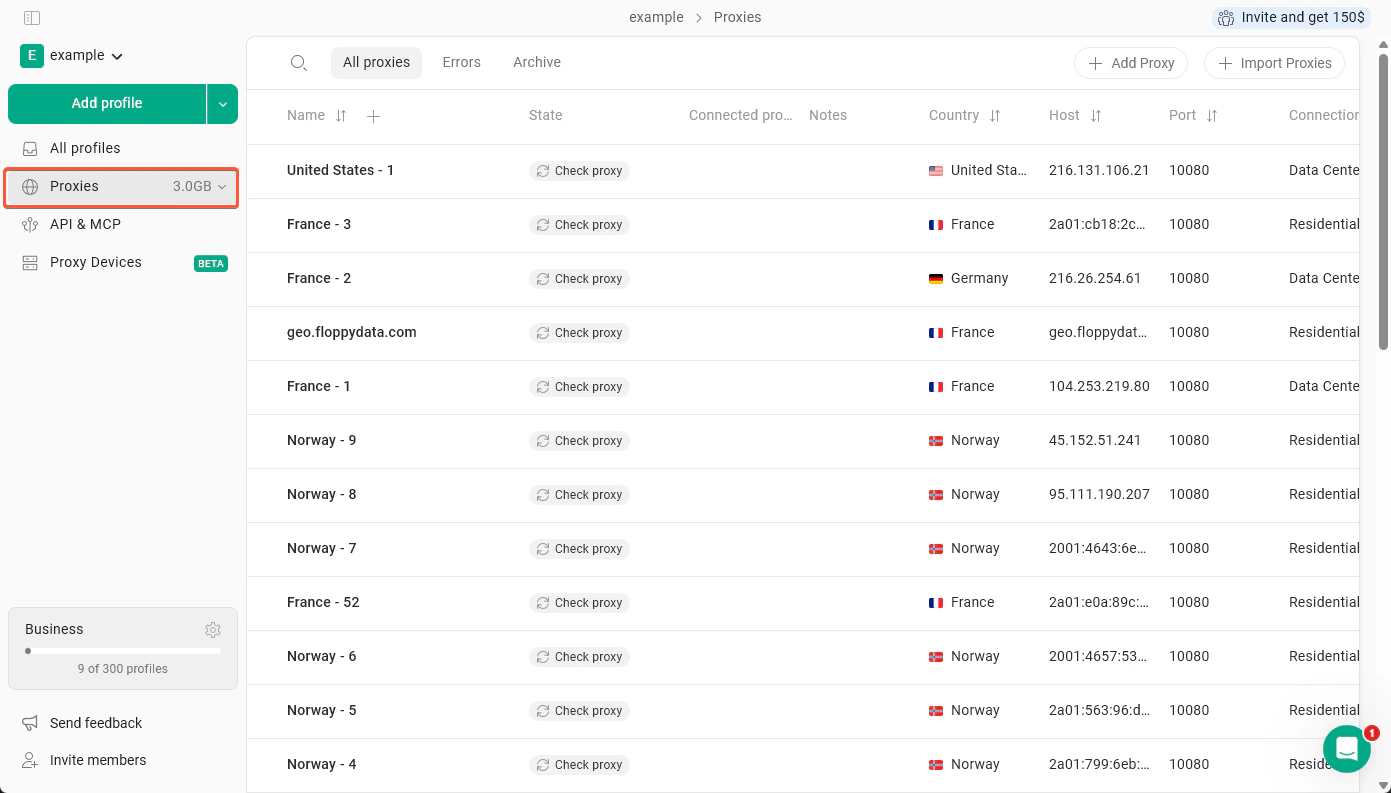
Navigation
The proxy list
Your proxies are displayed as a table with the following columns:- Name — the label you’ve assigned to the proxy
- State — current status; use the Check proxy button to test it
- Connected profiles — shows which profiles this proxy is attached to
- Notes — any custom notes you’ve added
- Country — detected location of the proxy
- Connection type — it will display the proxy type for Gologin proxies, such as Residential and Data center, or the connection type for third-party proxies, such as HTTP or SOCKS
- you also have access to change Host, port, login and password proxy fields
Tabs
At the top of the page you’ll find three tabs:- All proxies — your full proxy list
- Errors — proxies that failed a check
- Archive — proxies you’ve deleted or haven’t used for a long time
Adding proxies
You can add proxies two ways using the buttons in the top-right corner:- Add Proxy — add a single proxy manually
- Import Proxies — add multiple proxies at once