The simplest way
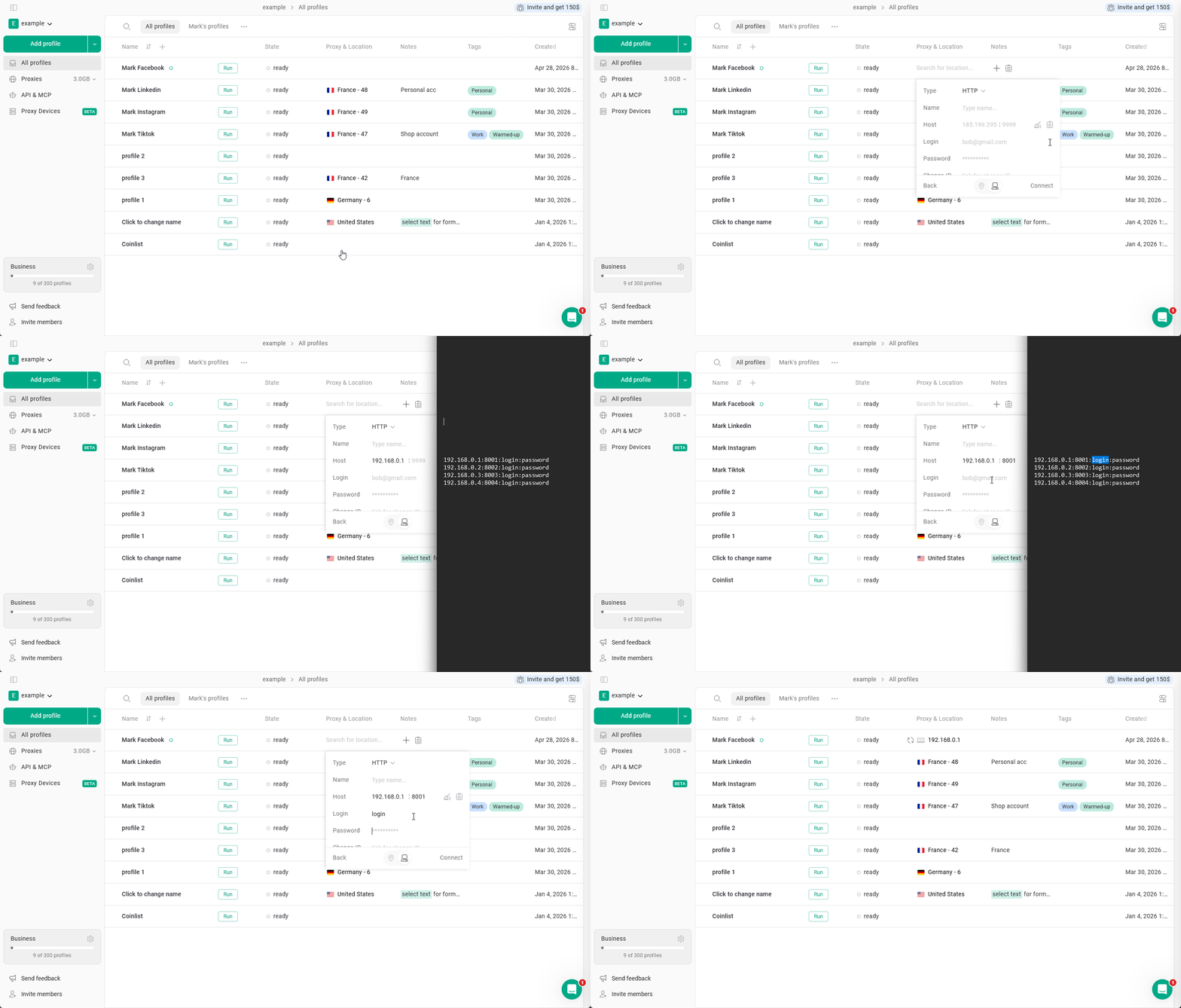
- At the All profiles page, find the Location column and click the + button at the profile, which you want to add a proxy to.
- In the opened window, hit the computer icon and input your IP, port, username and password.
- the HTTP or SOCKS protocol will get selected automatically based on availability, you can change it later.
- Click Connect, the proxy is now added to your profile!
- Gologin will check your proxy right away. You will see the green indicator if the proxy works properly, or the red one if it is not.
Other ways of adding a single or multiple proxies
On the Proxies page
Navigate to the Proxies page in the left menu > Import proxies > Paste proxies and click Import proxies.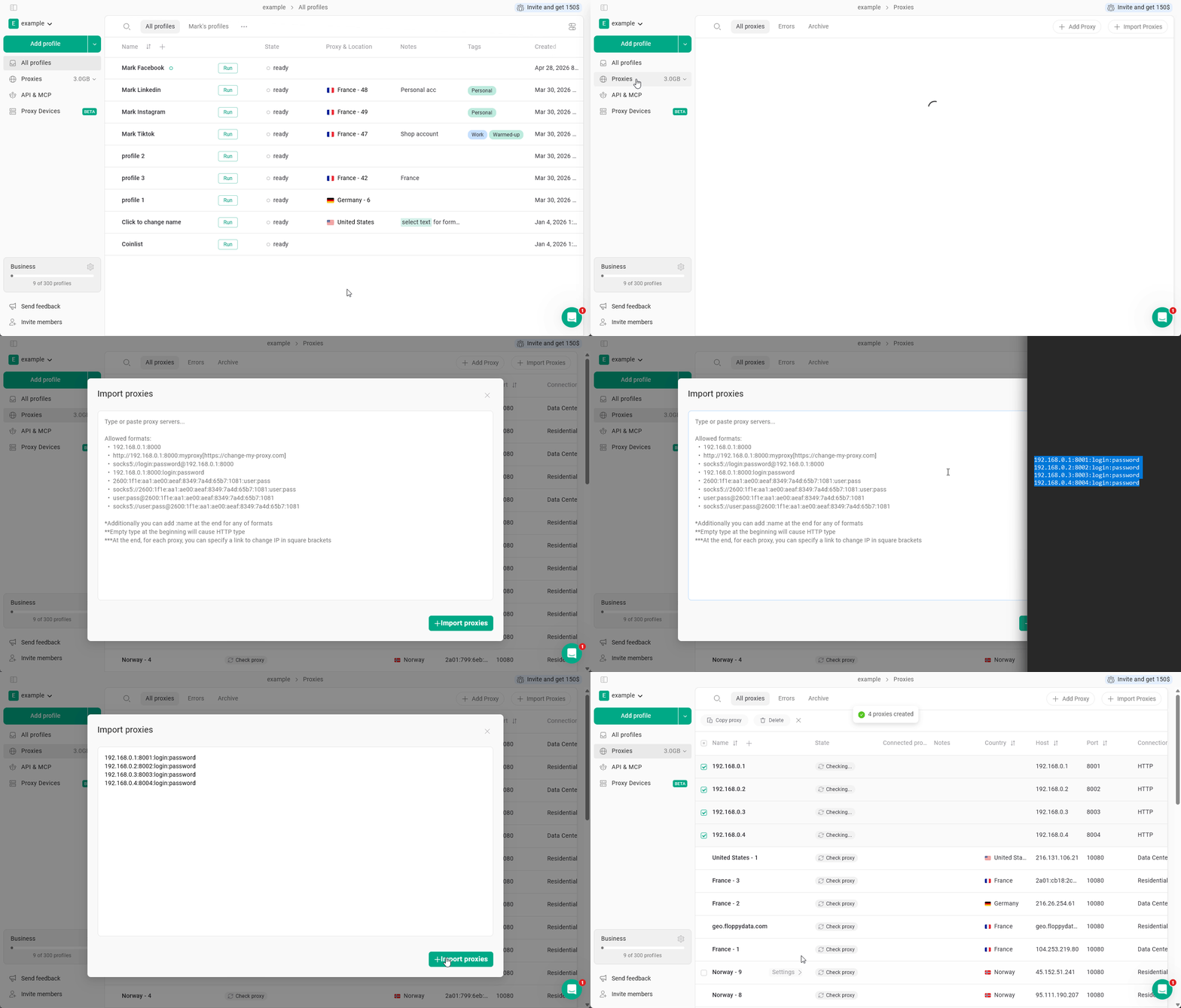
Using mass profile selection
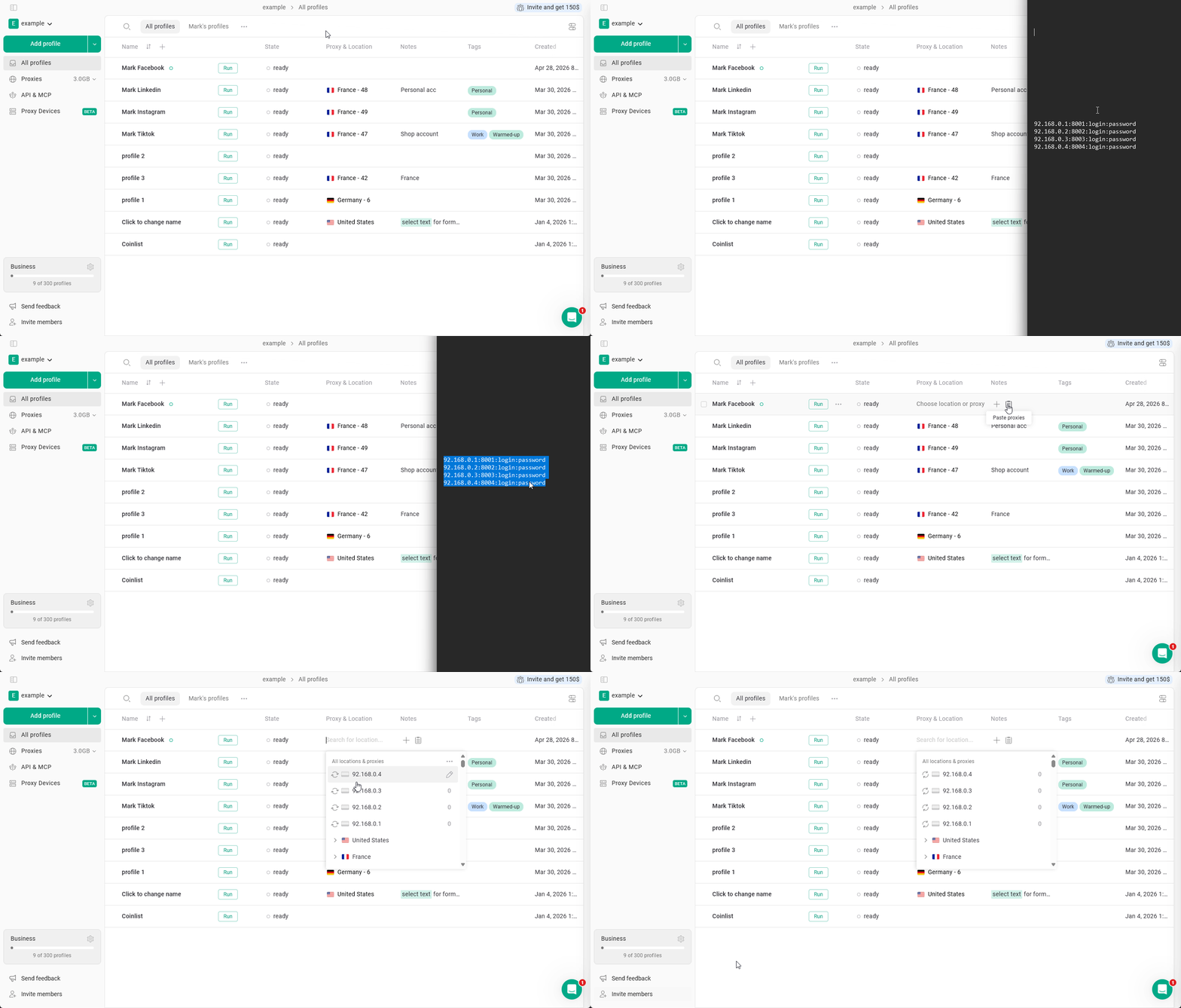
Select a few browser profiles > click Proxy in the bulk actions row > input proxies in a new window > click Update proxy.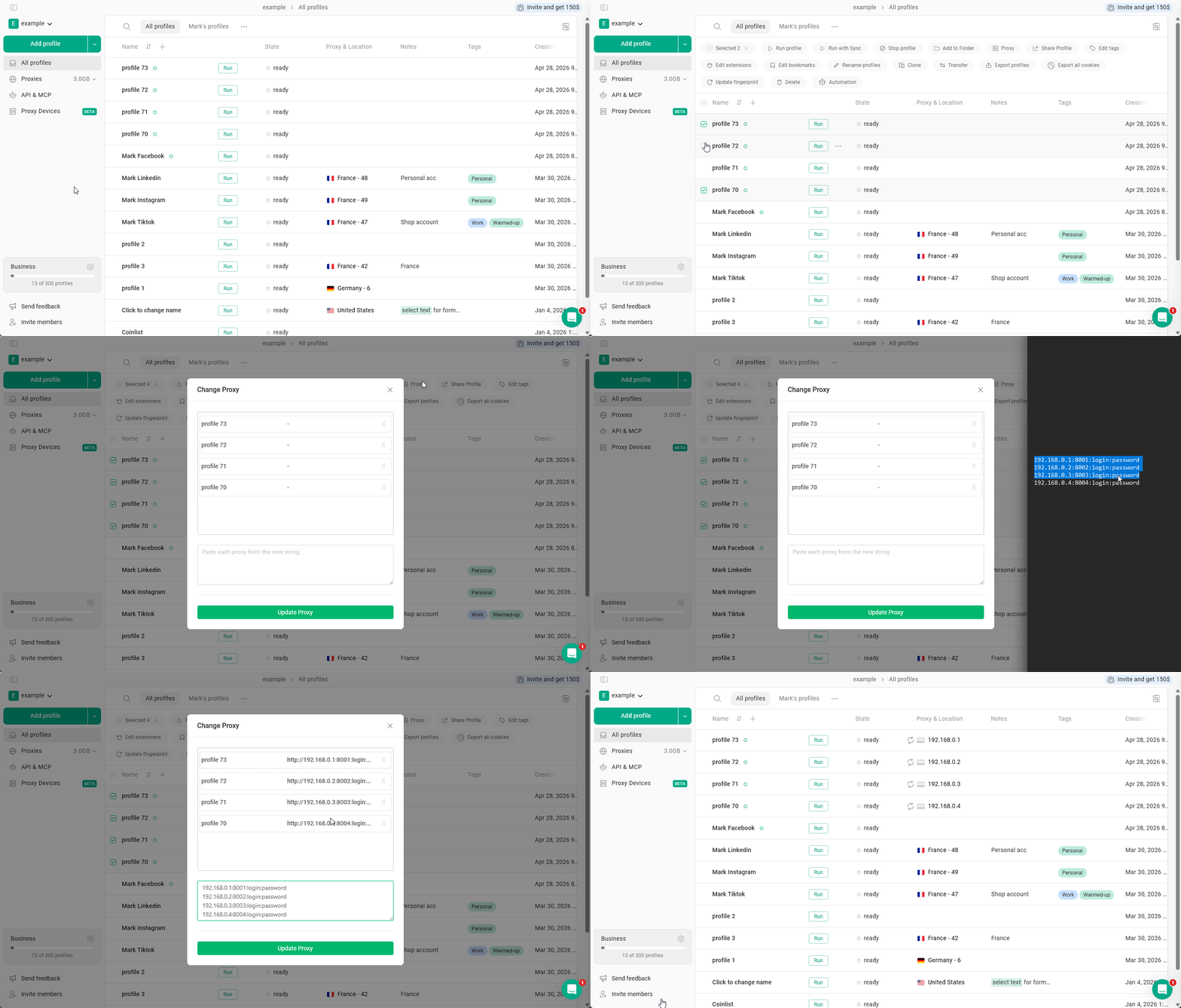
In the profile settings
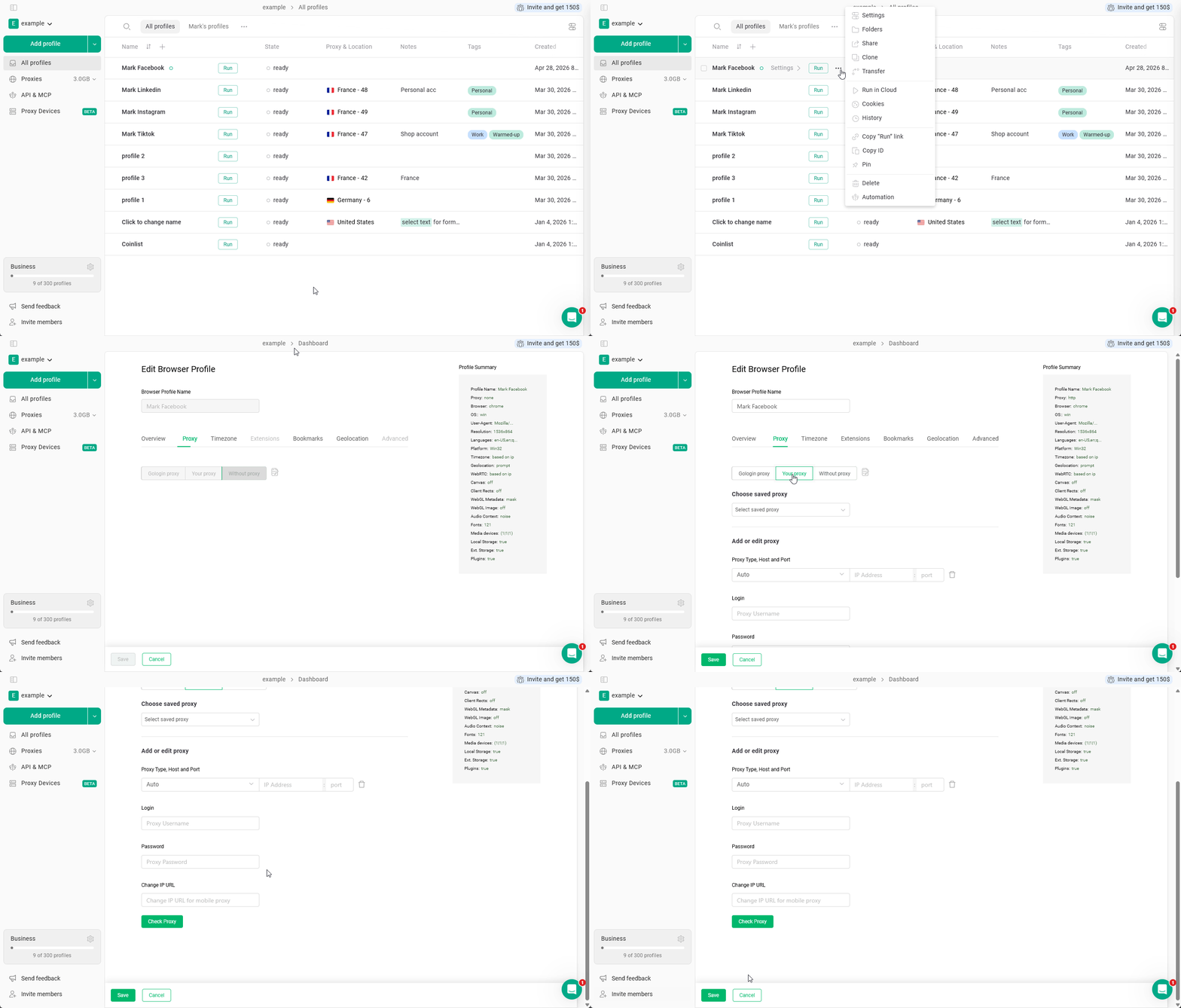
Click 3 dots on the profile > Settings > Proxy > Your proxy