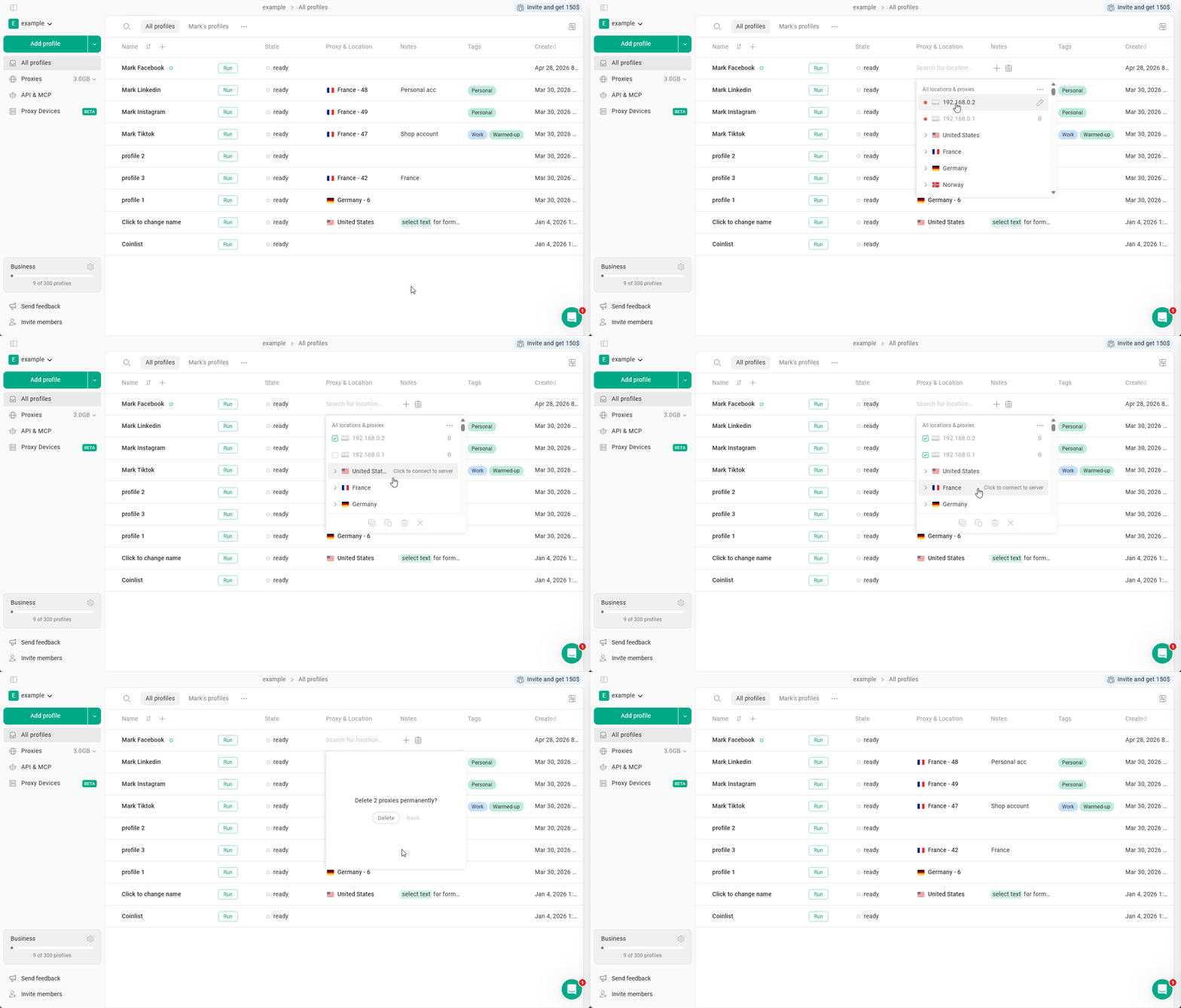
Adding a proxy
To add a single or multiple proxies:- Copy your proxy
- Hover over the Proxy & Location column on your profile
- Click the Paste proxies button
- you can also use the system hot keys to paste the proxies
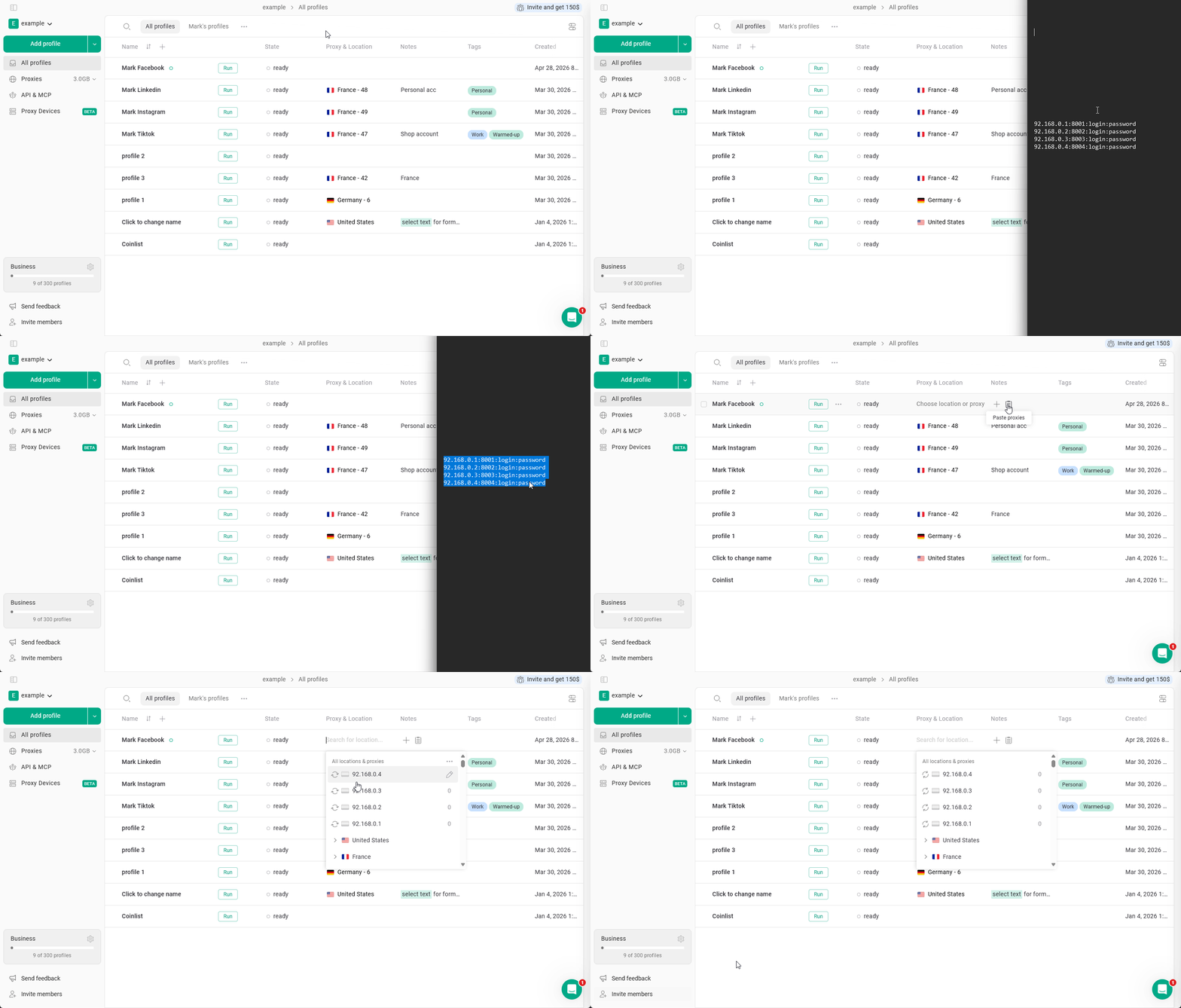
Checking a proxy
To check if the proxy is working: just click the arrows next to the proxy name on the All Profiles page.It will show the proxy country and the current outgoing IP.
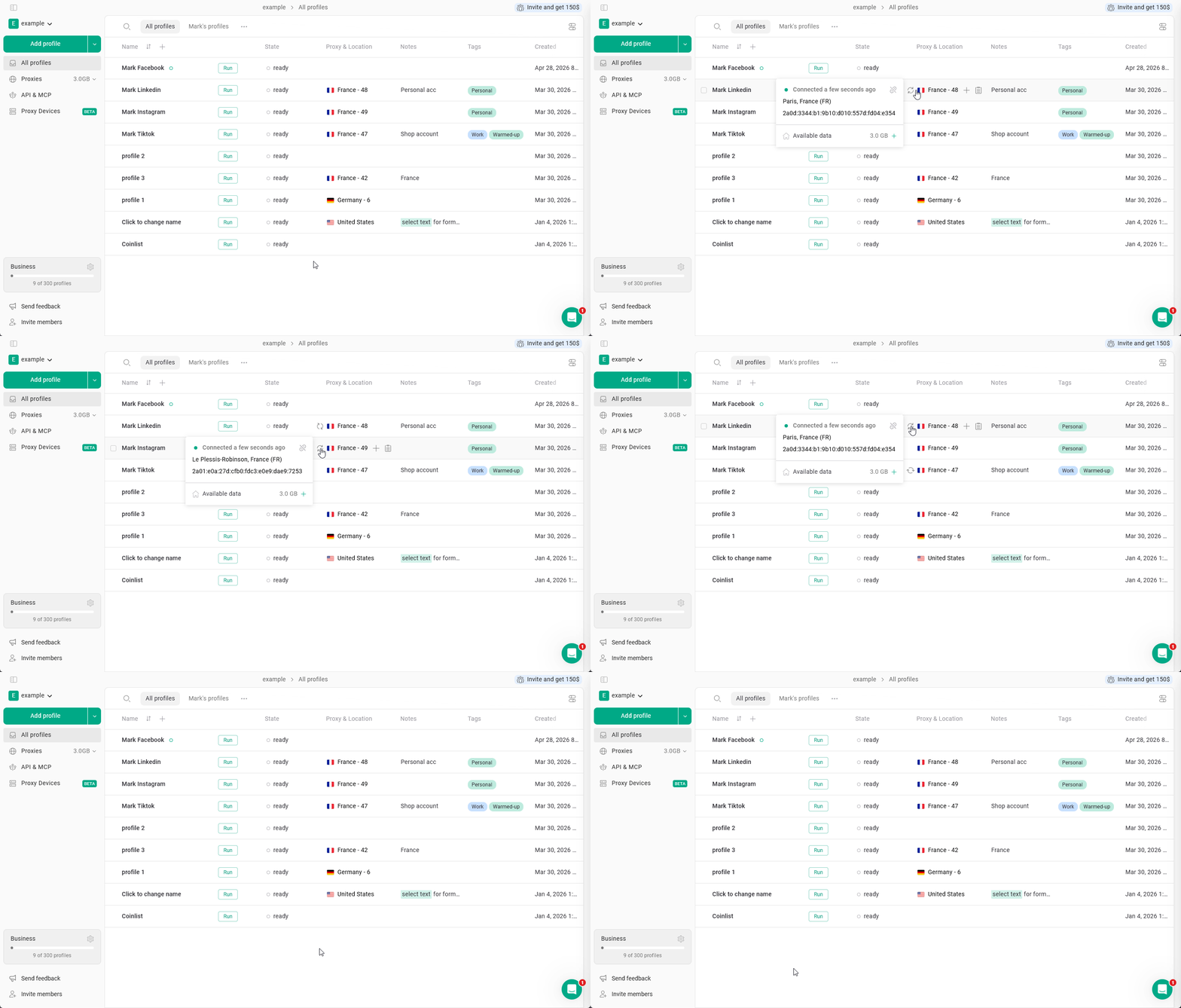
Editing proxy settings
To edit the proxy settings such as IP or password: click on the proxy > click the pencil icon > click Save after making changes.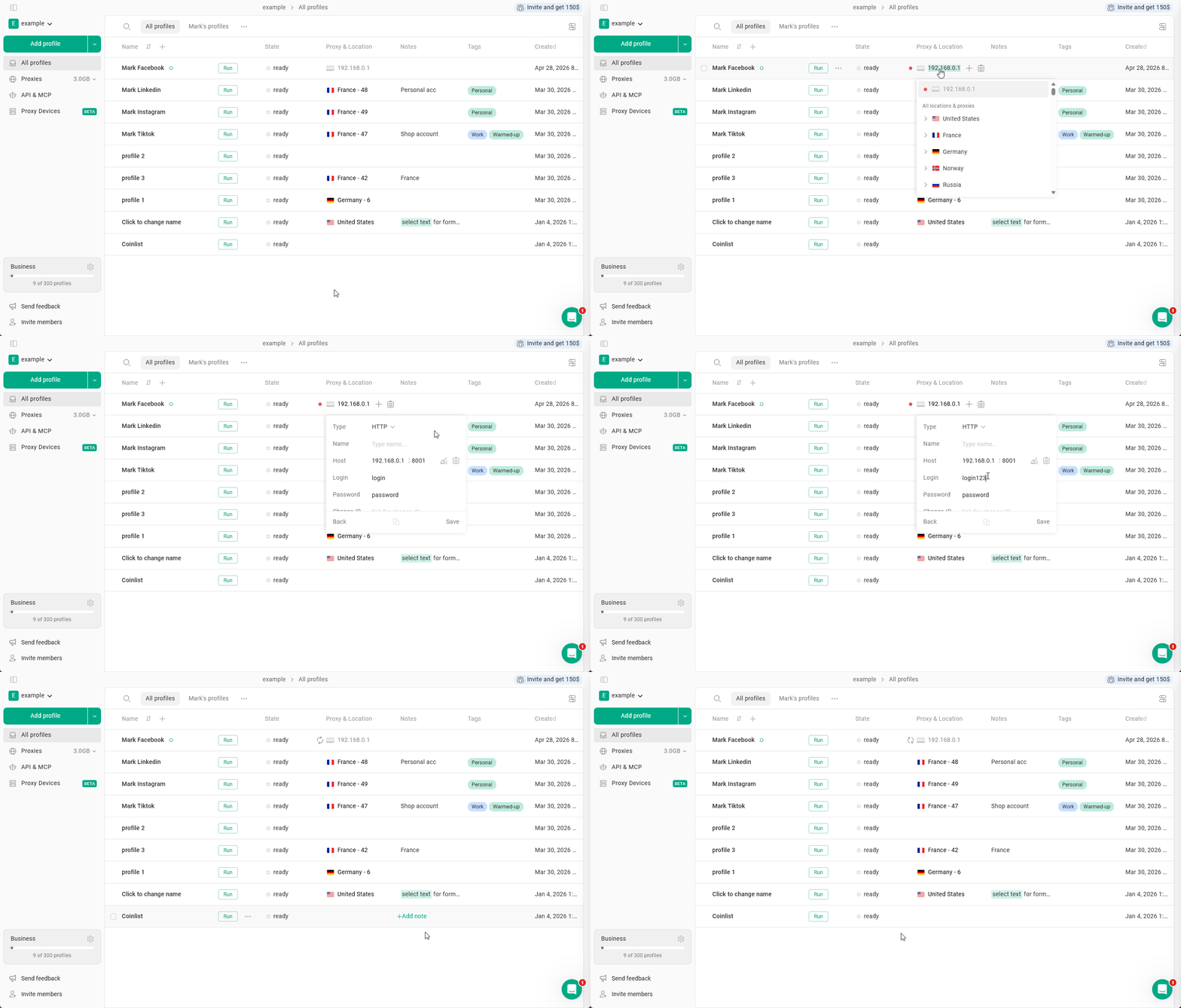
Unlinking proxy from profile
To remove a proxy from the profile without deleting it: click on the proxy, then click the X to unlink it.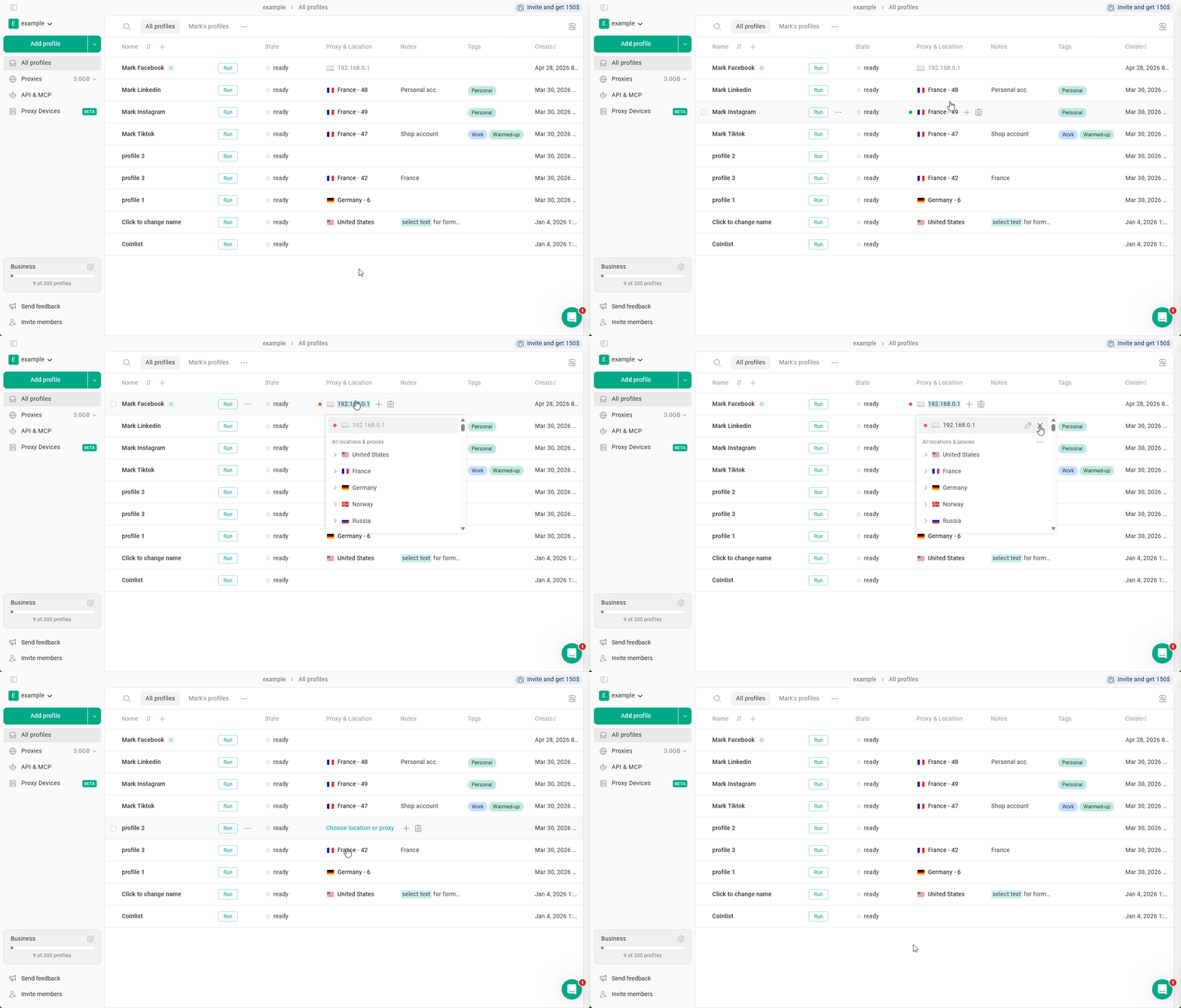
Deleting a proxy
To delete a proxy, click on any proxy to open the proxy manager > right-click on the proxy you want to delete > click Delete proxy > confirm your choice.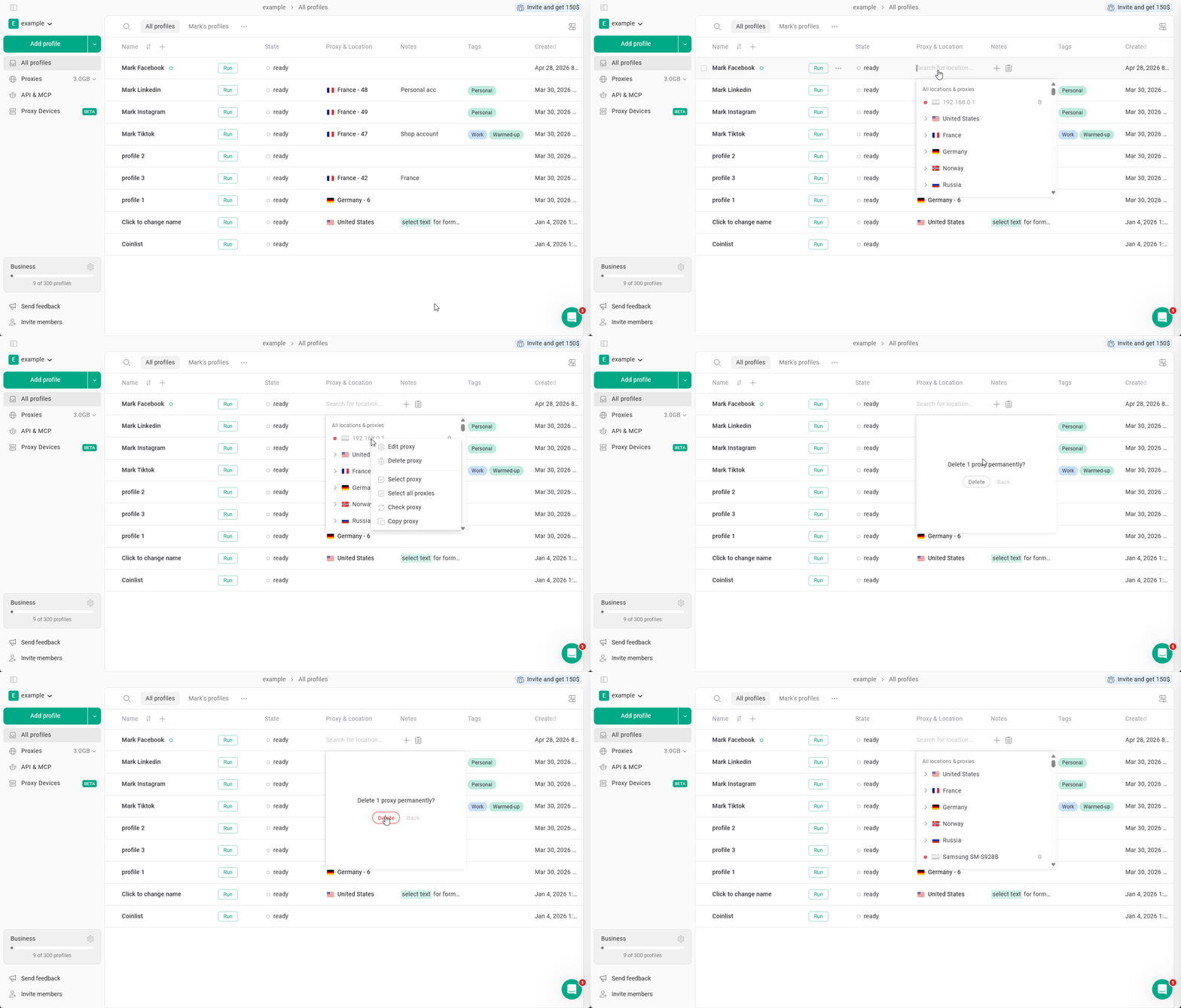
Copying proxies
To copy a proxy, click on any proxy to open the proxy manager > right-click on the proxy you want to copy > click Copy proxy.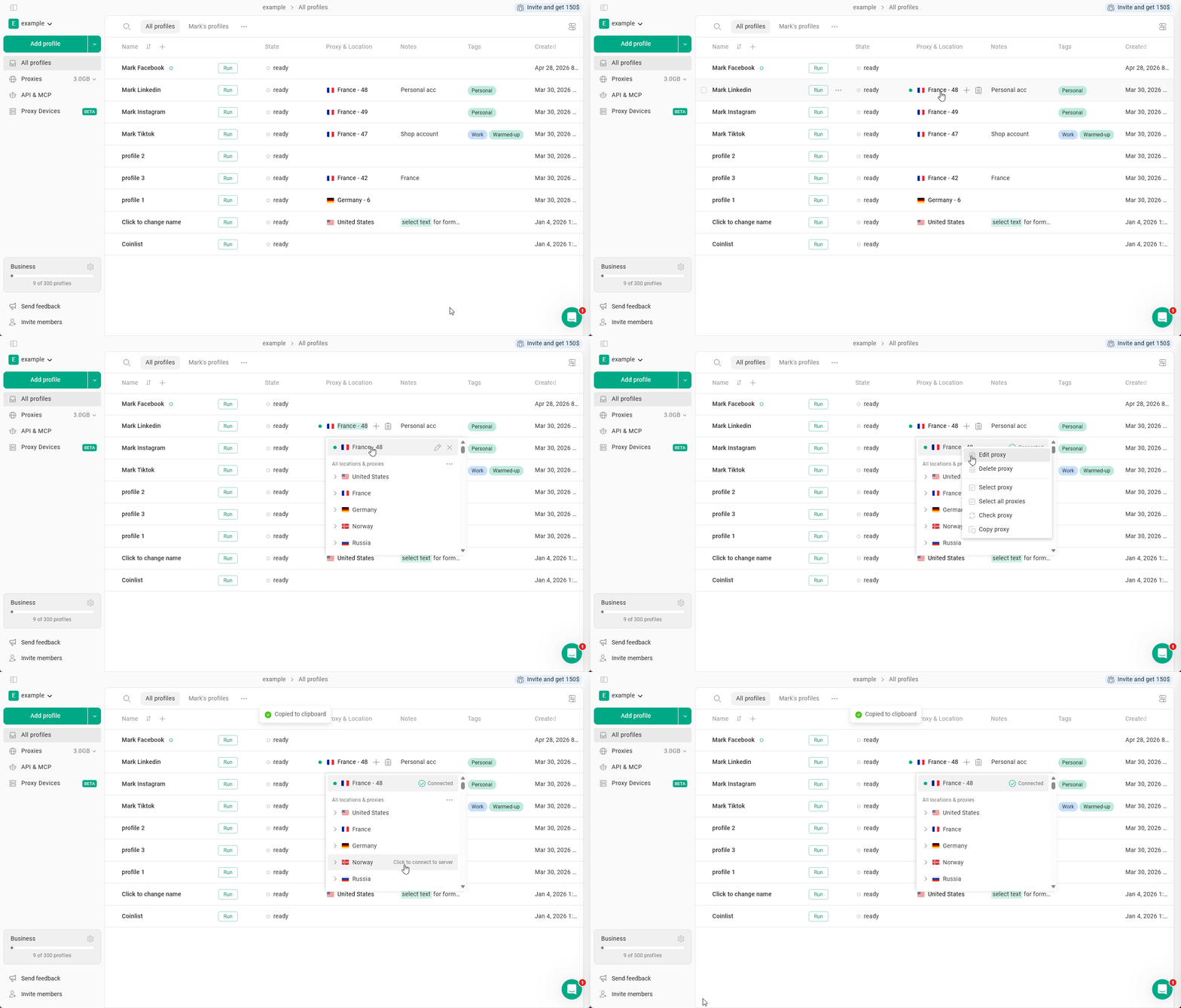
Bulk proxy actions
You can copy or delete multiple proxies at a time. Just click anywhere on the Proxy & Location column to enter the proxy manager > right-click on the proxy > Select proxy > keep selecting the proxies you want to act on > click Copy or Delete at the bottom of the Proxy Manager window.