How to invite team members
Note: if you choose to share the workspace access, the team member will have access to all the included profiles and folders.
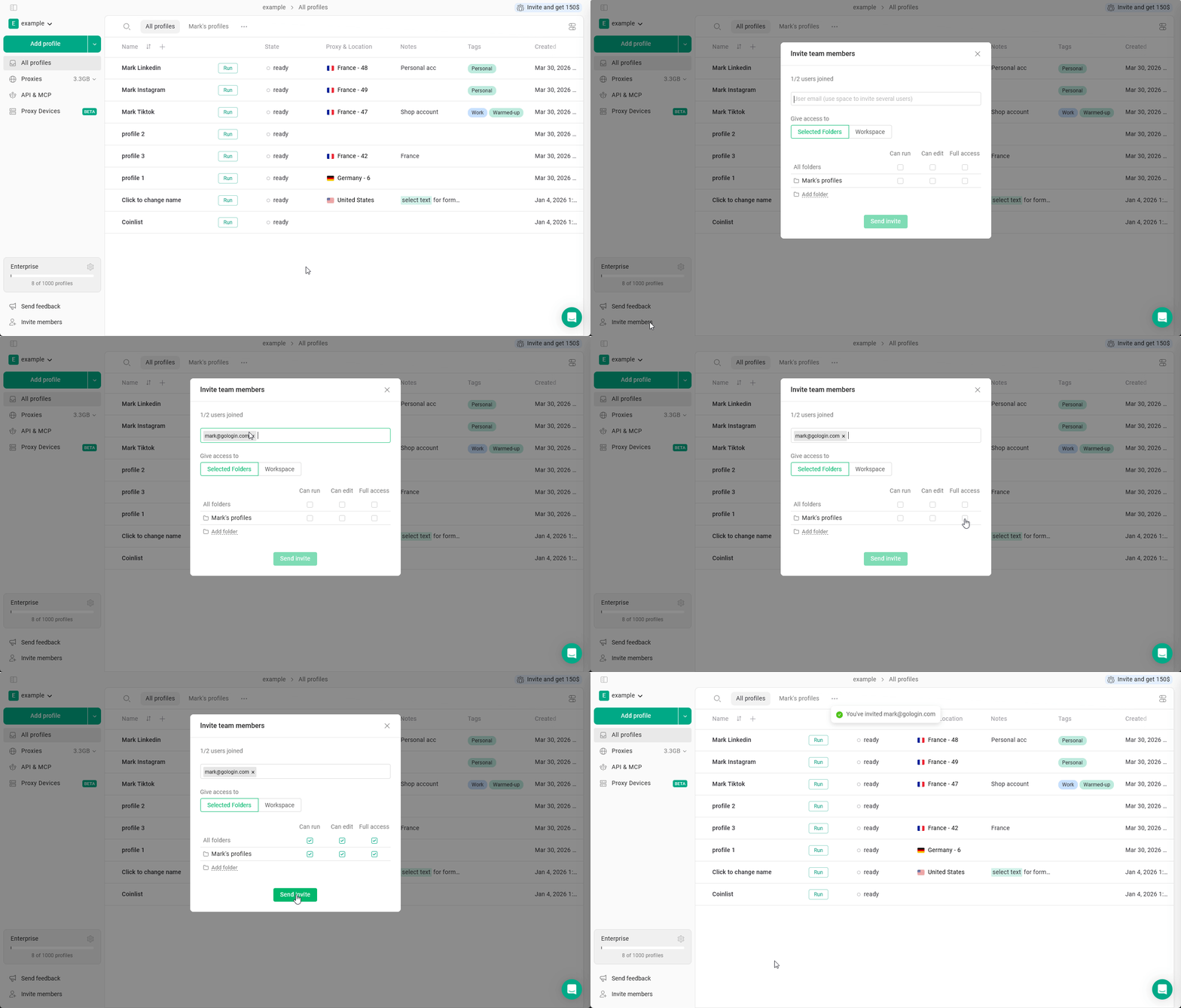
- Click Invite members at the bottom-left
- Enter the teammate’s email address
- Select the access type: Workspace or Selected Folders
- Choose the role: Can run, Can edit or Full access
- Click Send invite
If they have questions about accessing the workspace, show them this article.
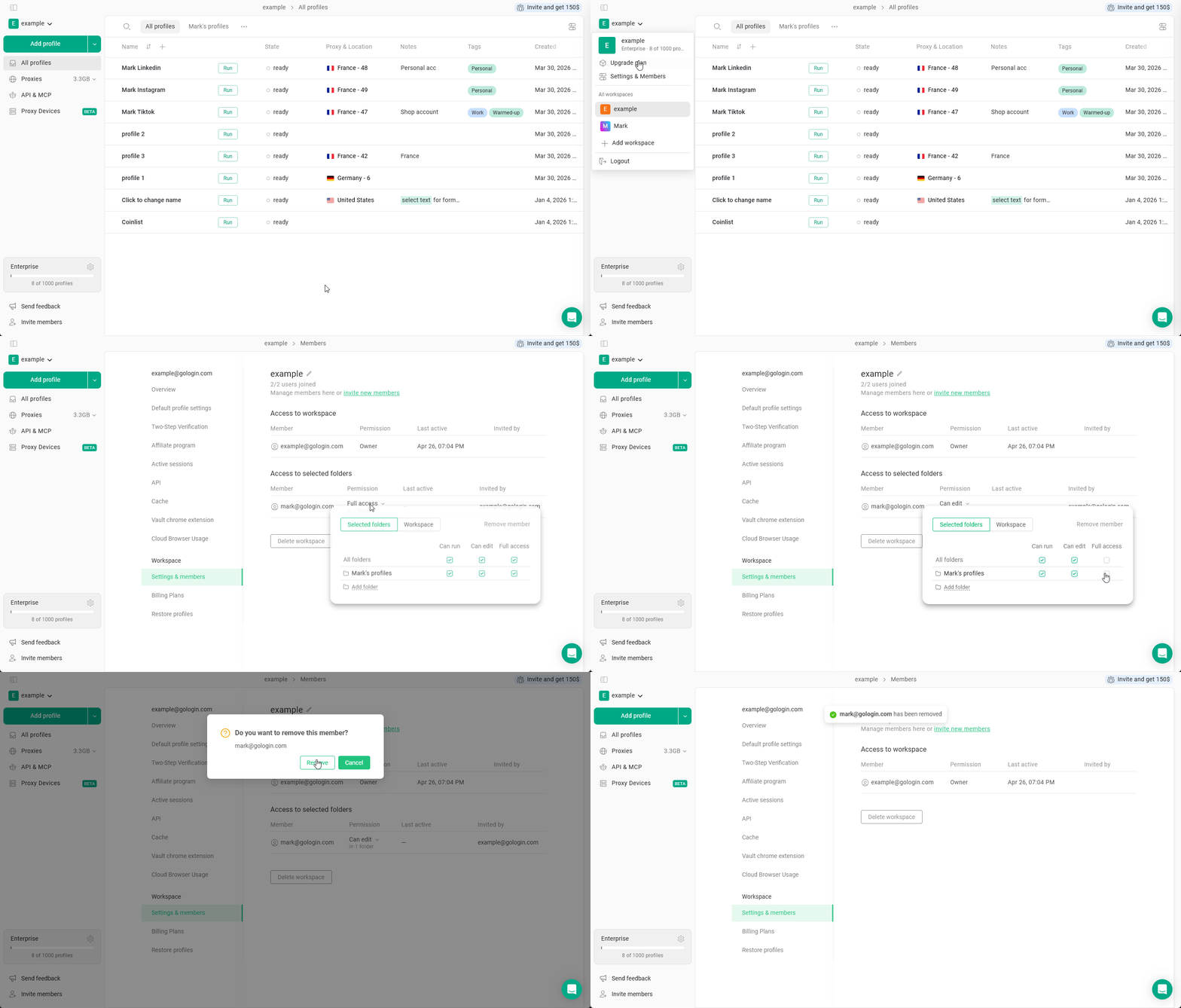
Changing and revoking access
To change or revoke the workspace access:- Navigate to the main menu at the top-left > Settings & Members
- Locate the member In the Settings & Members tab > click at their permission
- Change the permission as needed
- To revoke the workspace access click Remove member in the access menu