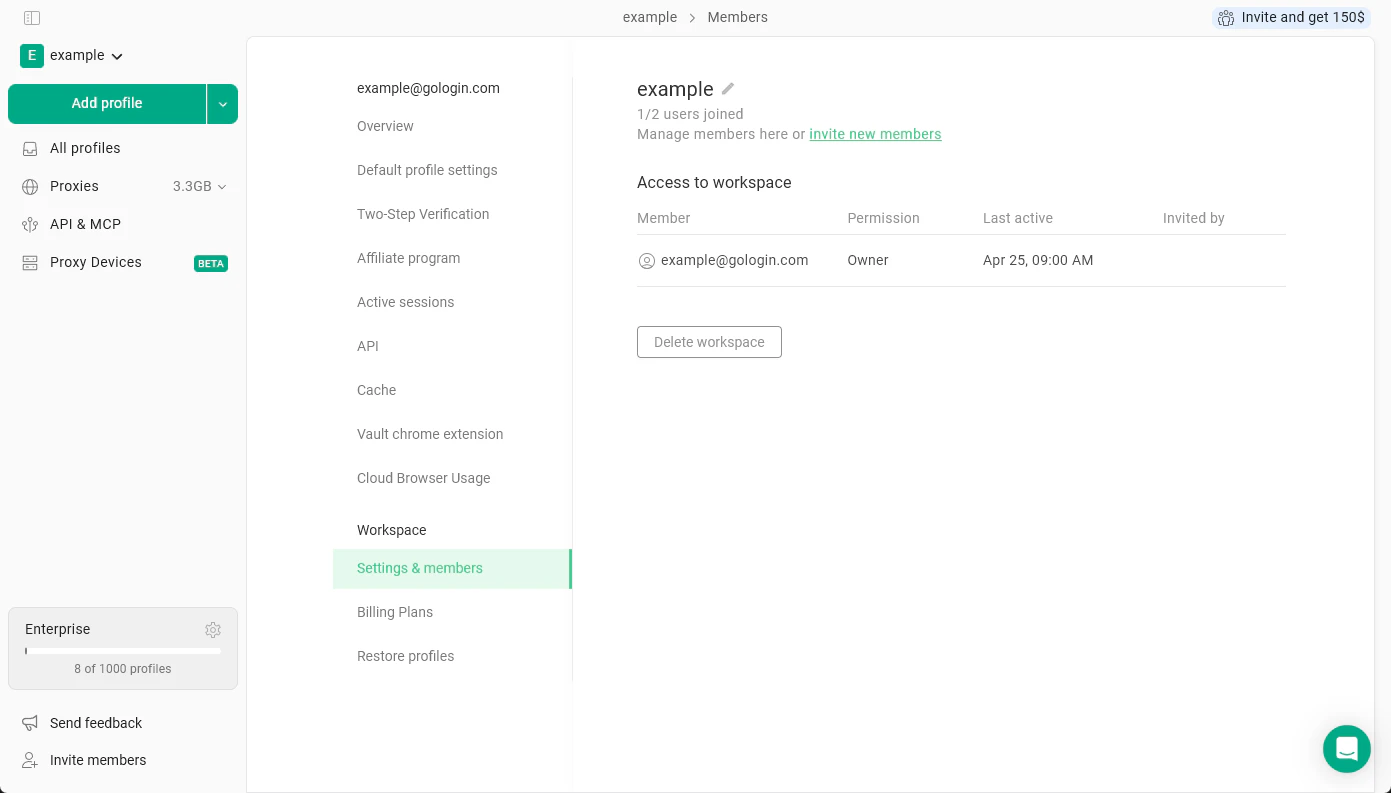
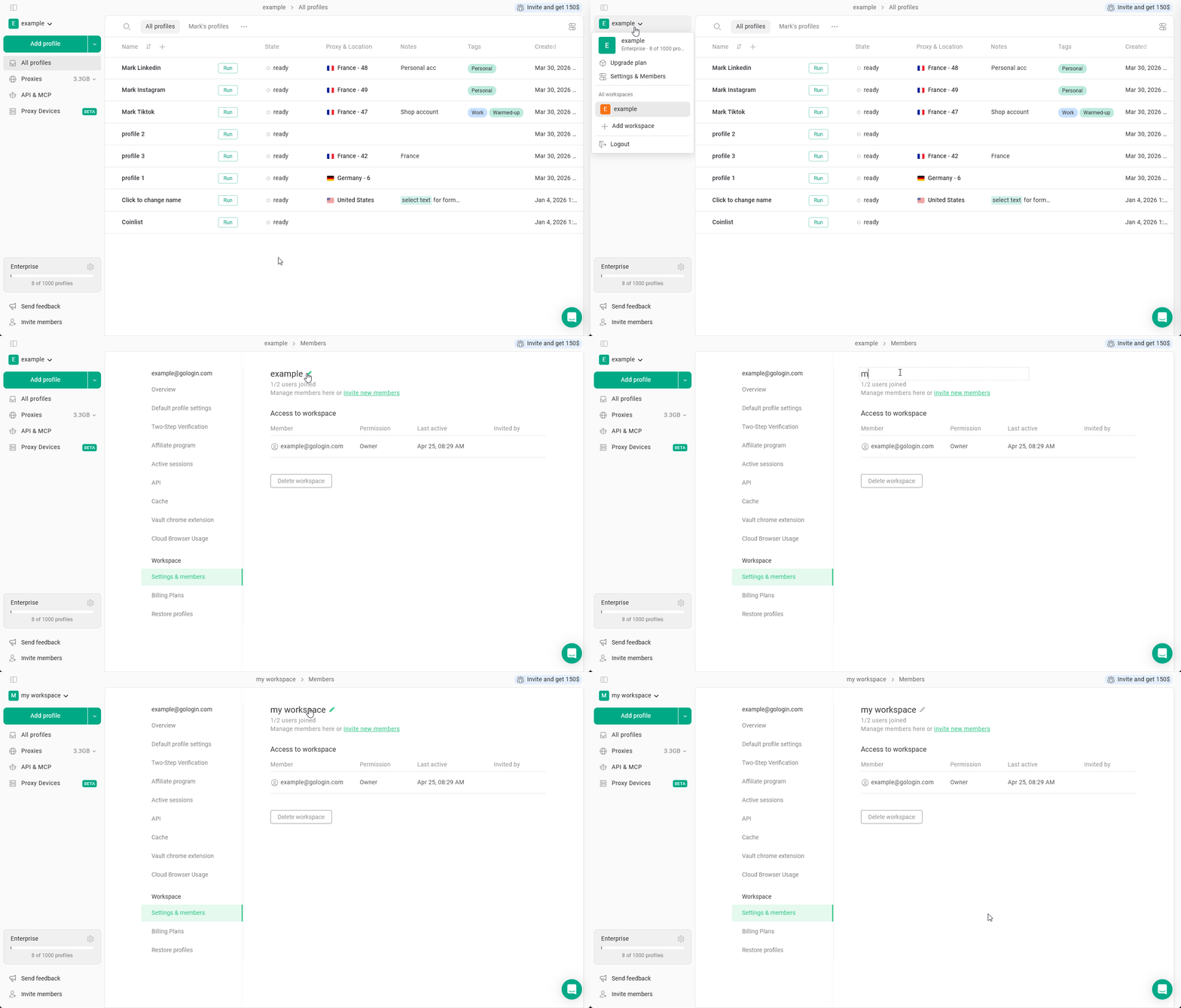
To reach the workspace settings, click on your workspace name at the top-left and hit Settings & Members.All your workspace-specific settings will be under the Workspace section.
Please be mindful of what you’re doing. Do not remove your main workspace as you will lose access to your profiles and subscription at least temporary. In some cases, your profiles might not get restored.In case you’ve accidentally removed a workspace and need it back, reach out to the support team as soon as possible.
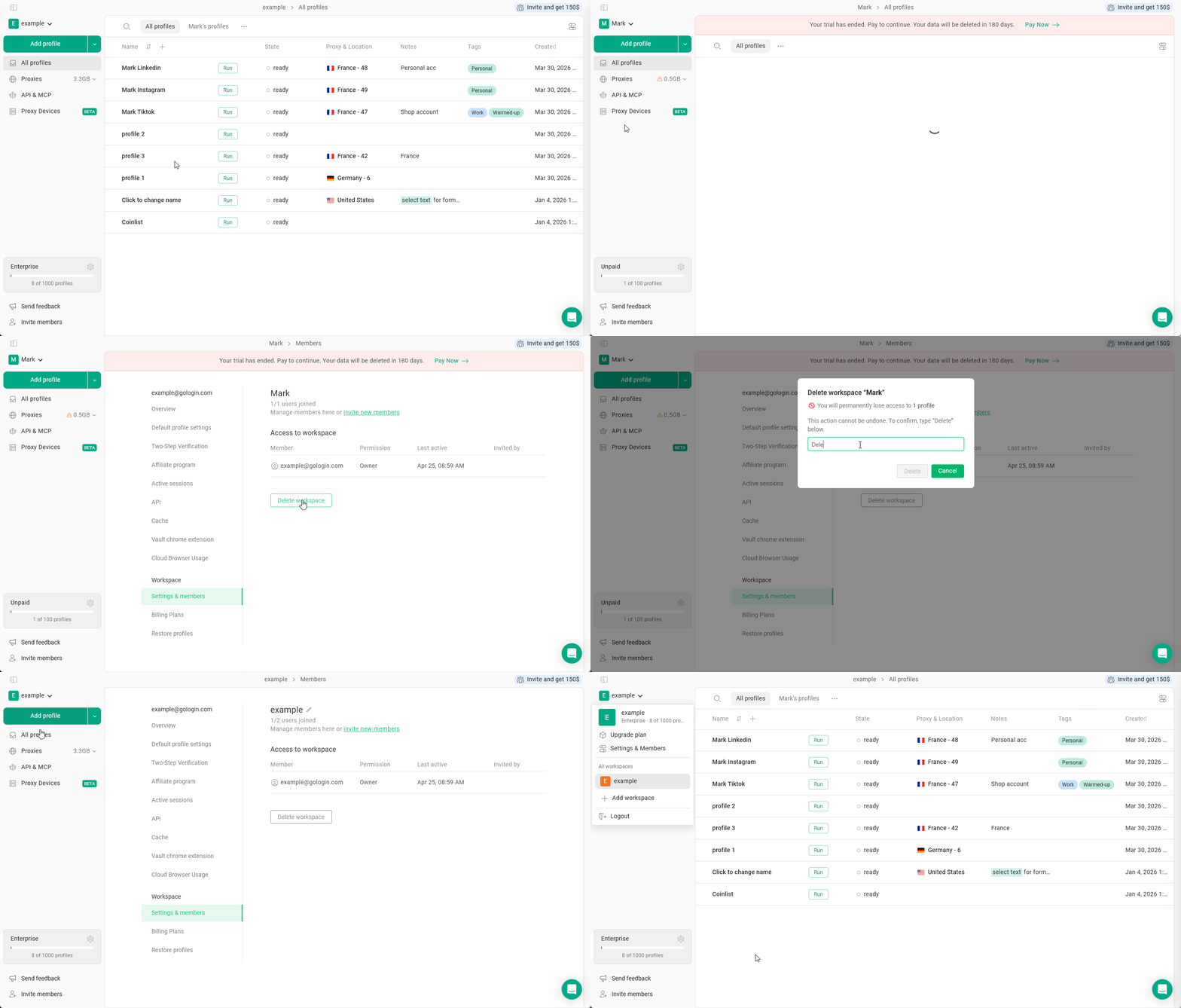
To remove a workspace:
Click on your workspace name in the top-left corner
Crucial: select a workspace that you choose to remove or verify you’re inside it
the workspace name should be outlined in gray in the workspace list and you should see it’s profiles in the profile list
In the main menu on the top-left, click Settings & Members
Click the Delete workspace button
Confirm the workspace parameters and verify that it’s the one you want to delete.
Type Delete
Click the Delete button
Gologin will remove the workspace and forward you to the settings of one of the workspaces you currently have.